
Add Wallets
Generate new wallets, buy Wallet Marketplace inventory, import from private keys or seed phrases, or pull wallets from an existing trading profile into Wallet Farm.

Click Add Wallets in the Wallet Farm toolbar to open the Add Wallets dialog. Available tabs depend on your role and marketplace inventory access. The main paths are:
Create New
Generate fresh wallets derived from a seed phrase.
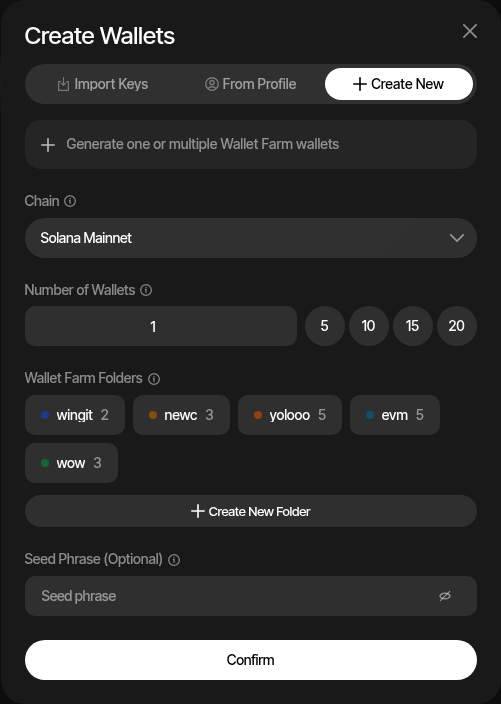
- Select the target Chain (Solana Mainnet, Ethereum, Base, etc.)
- Choose the Number of Wallets — use the quick-select buttons (5, 10, 15, 20) or enter a custom count
- Optionally assign a Wallet Folder to organize the new wallets
- Optionally provide a Seed Phrase — if left blank, Sumo uses the first Wallet Farm seed for your organization (or creates one automatically)
- Click Confirm
Wallets are derived using BIP-44 HD derivation, so they are deterministically reproducible from the seed. Names are auto-generated when creating multiple wallets.
Import Keys
Import existing wallets using private keys.
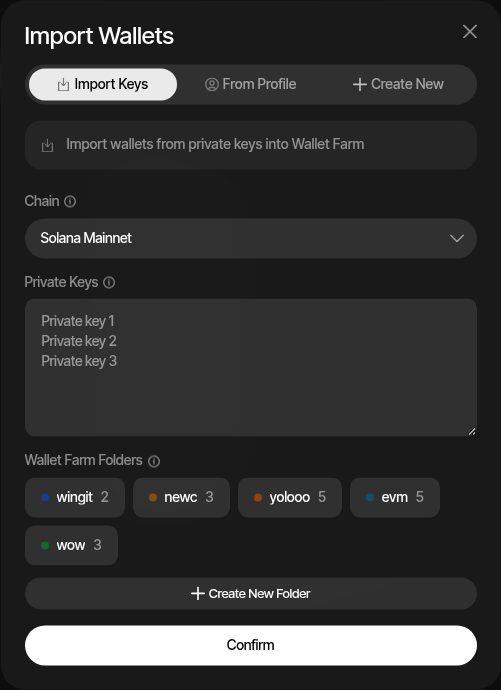
- Select the Import Keys tab
- Choose the target Chain
- Paste private keys — one per line
- Optionally assign a folder
- Click Confirm
Key Security
Imported private keys are encrypted immediately using AES-256-GCM before storage. They never exist in plaintext in the database. See Security & Encryption for details.
From Marketplace
Buy aged wallet marketplace inventory into Wallet Farm. This is useful when you want wallets prepared outside a specific trading profile, then later import them into a launch or trading profile.
See Wallet Marketplace for the full Wallet Farm marketplace flow.
From Profile
Pull wallets from an existing trading profile into Wallet Farm. This is useful when you want to reuse wallets from a completed or inactive profile for a future launch.
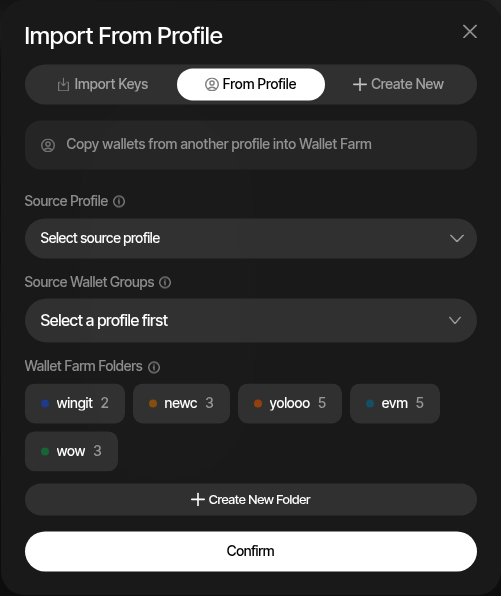
- Select the From Profile tab
- Choose a Source Profile from the dropdown
- Select which wallets to import
- Optionally assign a folder
- Click Confirm
Source wallets remain in their original profile — Wallet Farm creates independent copies that share the same on-chain addresses and key material.
Wallet Folders
Folders help you organize wallets by purpose, team member, or launch. You can create folders from the Add Wallets dialog or from the Manage Folders toolbar button.
- Each folder has a name and a color indicator
- Wallets can belong to at most one folder
- Use the Filter folders toolbar button to show only wallets in a specific folder
- Bulk-assign wallets to folders via the Manage Folders dialog
Wallet Farm
Manage wallets centrally, independent of any trading profile — fund them early, build on-chain history, and import them when you're ready to trade.
Generate Activity
Build natural on-chain transaction history for Wallet Farm wallets by executing real token swaps through an aggregator or directly against a DEX pool.